


How to Add Subtitles and Captions Easily in Your Video
Have you ever watched a video in a noisy place and still understood everything because of subtitles? Or maybe you were watching a video in another language and captions helped you follow along. Subtitles and captions are super useful – not just for viewers, but also for creators who want to reach more people. The good news is that adding them to your videos is not as complicated as it sounds. Let’s break it down step by step in a simple way.
Why Are Subtitles and Captions Important?
- Accessibility – Captions help people with hearing difficulties understand your content.
- Better Understanding – Viewers who are not fluent in your language can still follow the video.
- Engagement Boost – Many people watch videos on mute (especially on social media). Captions keep them hooked.
- SEO Advantage – Subtitles make your video more searchable because platforms like YouTube can read the text.
Easy Ways to Add Subtitles
1. Use YouTube’s Auto-Captions
If you upload videos on YouTube, it automatically generates captions. Although they aren’t always perfect, you can edit them inside YouTube Studio. It’s quick and free.
2. Online Tools and Apps
Apps like Kapwing, Veed.io, or Clideo allow you to upload your video and add subtitles easily. Most of them even have an auto-caption option. You just need to check and correct mistakes.
3. Editing Software
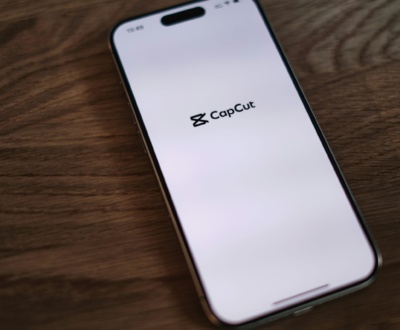
If you use editing apps like CapCut, Filmora, or Adobe Premiere Pro, they have built-in caption features. CapCut even has an “auto captions” option, which saves a lot of time.
Step-by-Step Guide (Student Friendly)
- Upload your video to the tool or app you are using.
- Click on Subtitles / Captions option.
- Choose Auto-Generate (if available) or type them manually.
- Check spelling and timing. Make sure the text matches the audio.
- Style your captions. You can change the font, size, or color to make them clear and readable.
- Export and Save. Your video is now ready with subtitles!
Tips for Better Captions
- Keep the text short and simple.
- Don’t cover important visuals on the screen.
- Use easy-to-read fonts.
- Double-check grammar and spelling.
Final Thoughts
Adding subtitles and captions is not just about following a trend – it’s about making your videos more inclusive, understandable, and professional. As a student creator, you don’t need expensive tools or advanced skills. With free apps and auto-caption features, you can do it in minutes. Next time you make a video, try adding captions – you’ll see how much it improves your content reach and quality!
additionally check it out other post - Video Editing Beginners Guide
More from our blog
See all posts



Recent Posts
- How to Add Subtitles and Captions Easily in Your Videos October 14, 2025
- comparison between After Effect and Premiere Pro September 1, 2025
- Slow Motion Video Editing August 28, 2025